COBE Lab Motion Lab user manual
Version 1.0
Table of Contents
- Safety
- Hardware overview
- Finding Help
- Setting up your experiment
- Start-up routine on each new testing day
- Closing-down routine after each testing day
- Data management in COBE Lab
1 Safety
The Qualisys mocap system is easy and flexible, but it is also expensive and delicate. As a user, you need to make sure to treat it well.
- Reduce touching the grey surface of the markers to a minimum.. Frequent touch, esp. with sweaty, fatty or dirty fingers, destroys the surface and thereby reduces recording quality.
- Treat the calibration wand with extreme care. Its accuracy directly imoacts the accuracy of your and other people’s data. This includes safely storing it away after use.
- Do not bend any cables. All cables should lie in loops without bending in sharp edges.
- Do not let the cameras or other parts pf the equipment fall or receive other damage.
- Although the cameras don’t overheat, do switch them off when you are taking longer breaks from recording.
- It is also your responsibility that your participants and other people involved in your project know the relevant safety measures and handle the motion capture equipment with care.
2 Hardware overview
- 8 Miqus cameras: 4 normal and 4 wide-lense
- The order, starting from the first one connected to the computer: 1 normal, 2 normal, 3 wide, 4 wide, 5 normal, 6 wide, 7 wide, 8 normal.
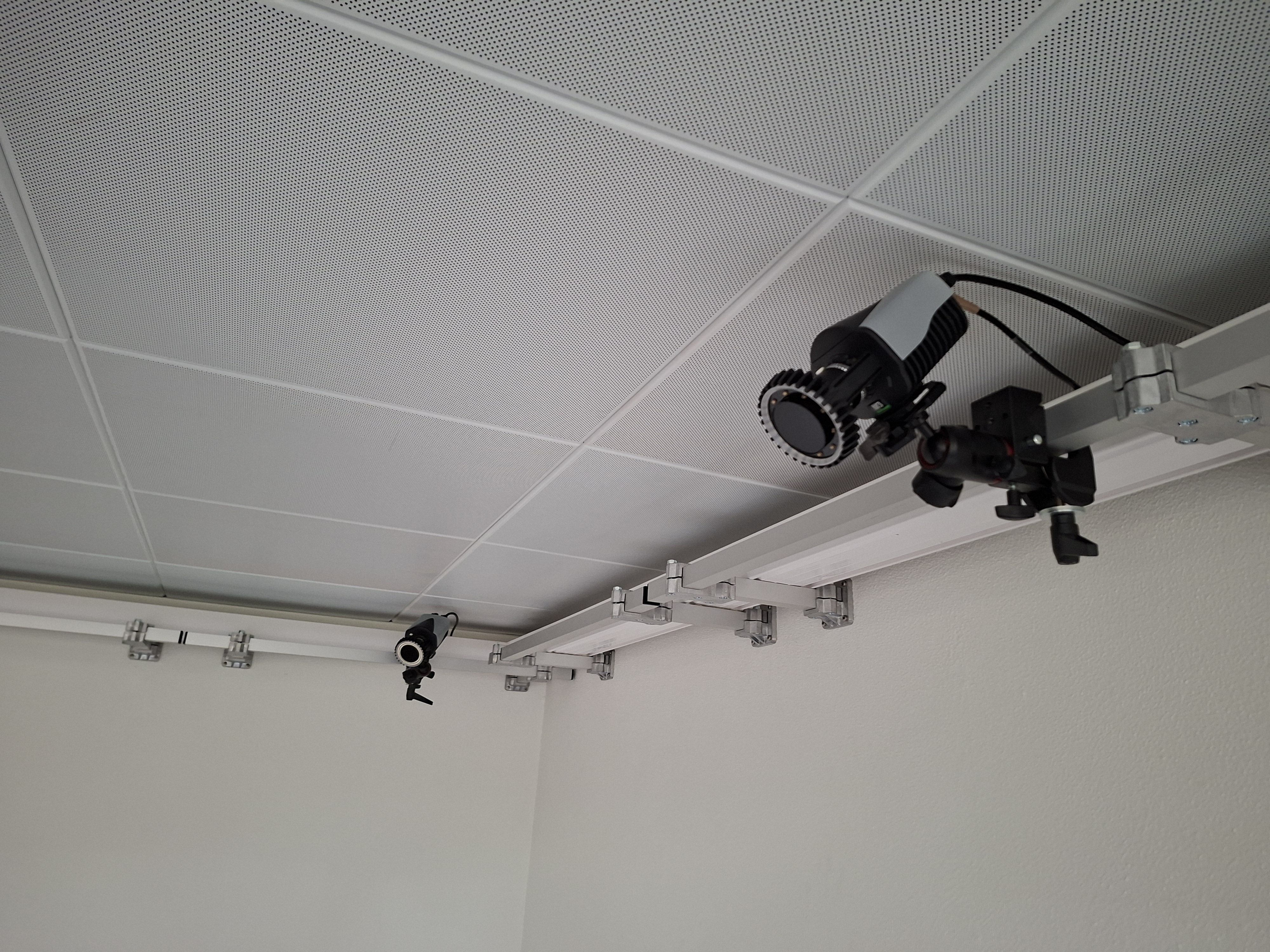
- 1 video camera
 and Miqus camera (right).png)
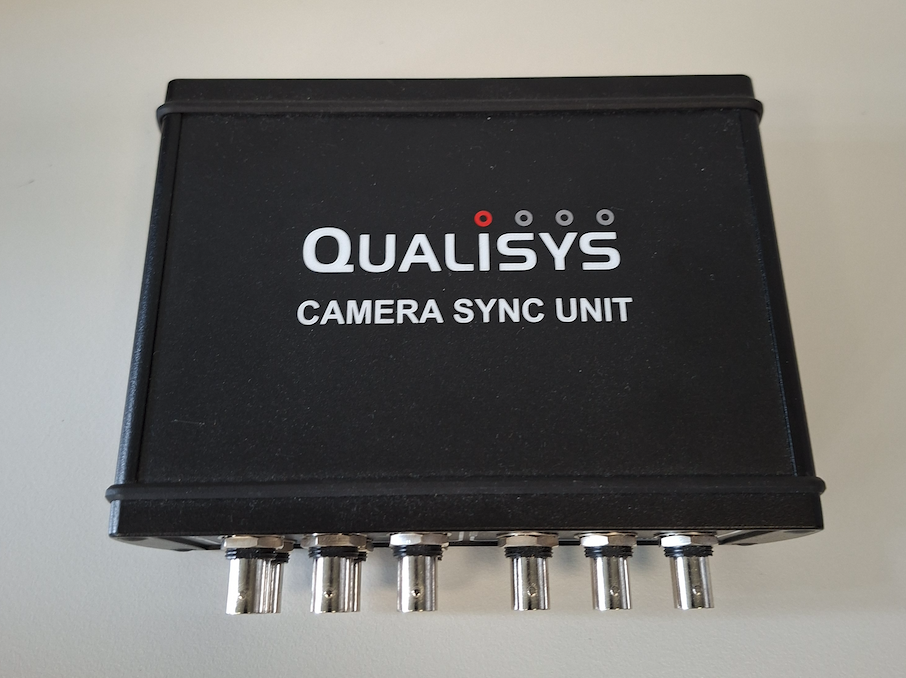
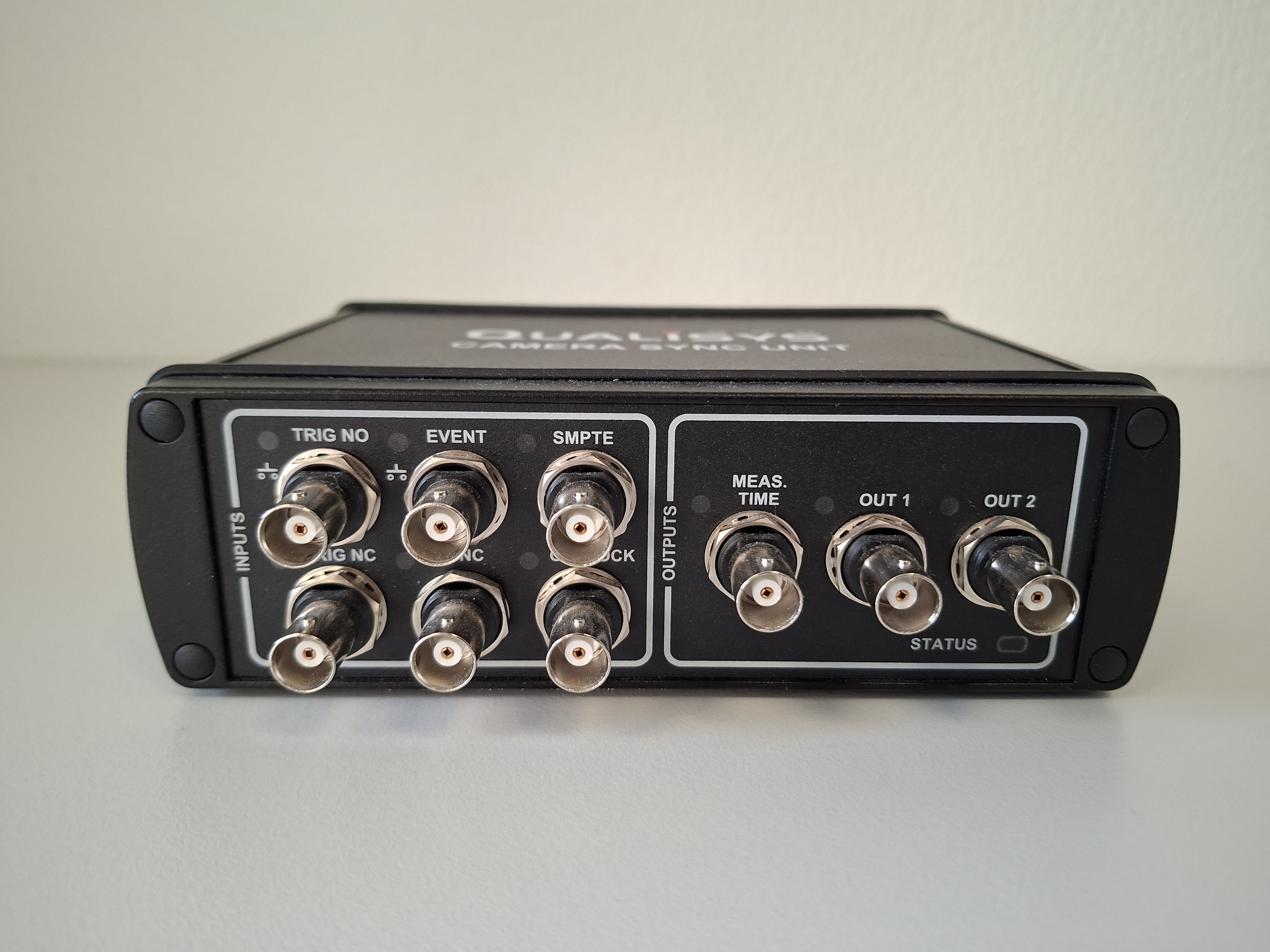
- 1 sync box
- It can be used for connecting all kinds of other equipment. It is not a requirement to connect it, so you can as well choose to have your project without it. In this case, the first camera directly connects to the power injector.
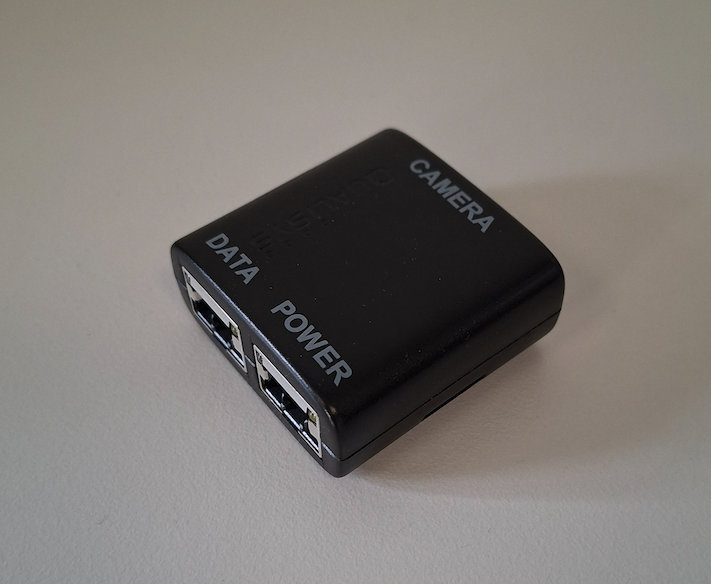
- 1 power injector
- It receives the cable from the first camera or the sync box as input and has the camera power plug and the data connection to the computer as outputs.
- 1 camera power plug
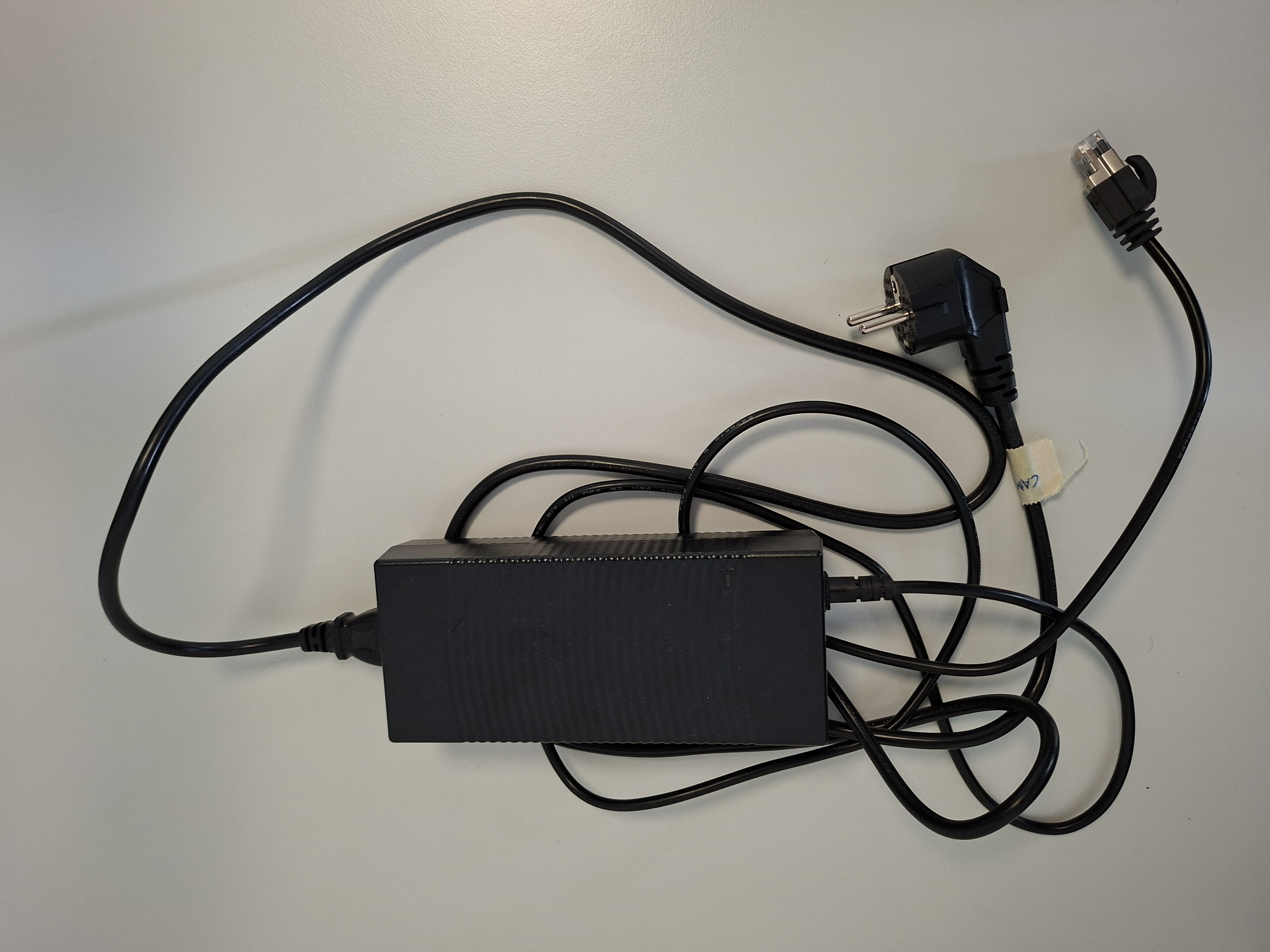
- Longer and shower ethernet cables creating the daisy chain (hidden behind the ceiling tracks)
- 1 calibration device (“magic wand”) and axis calibration device (“L-frame”)
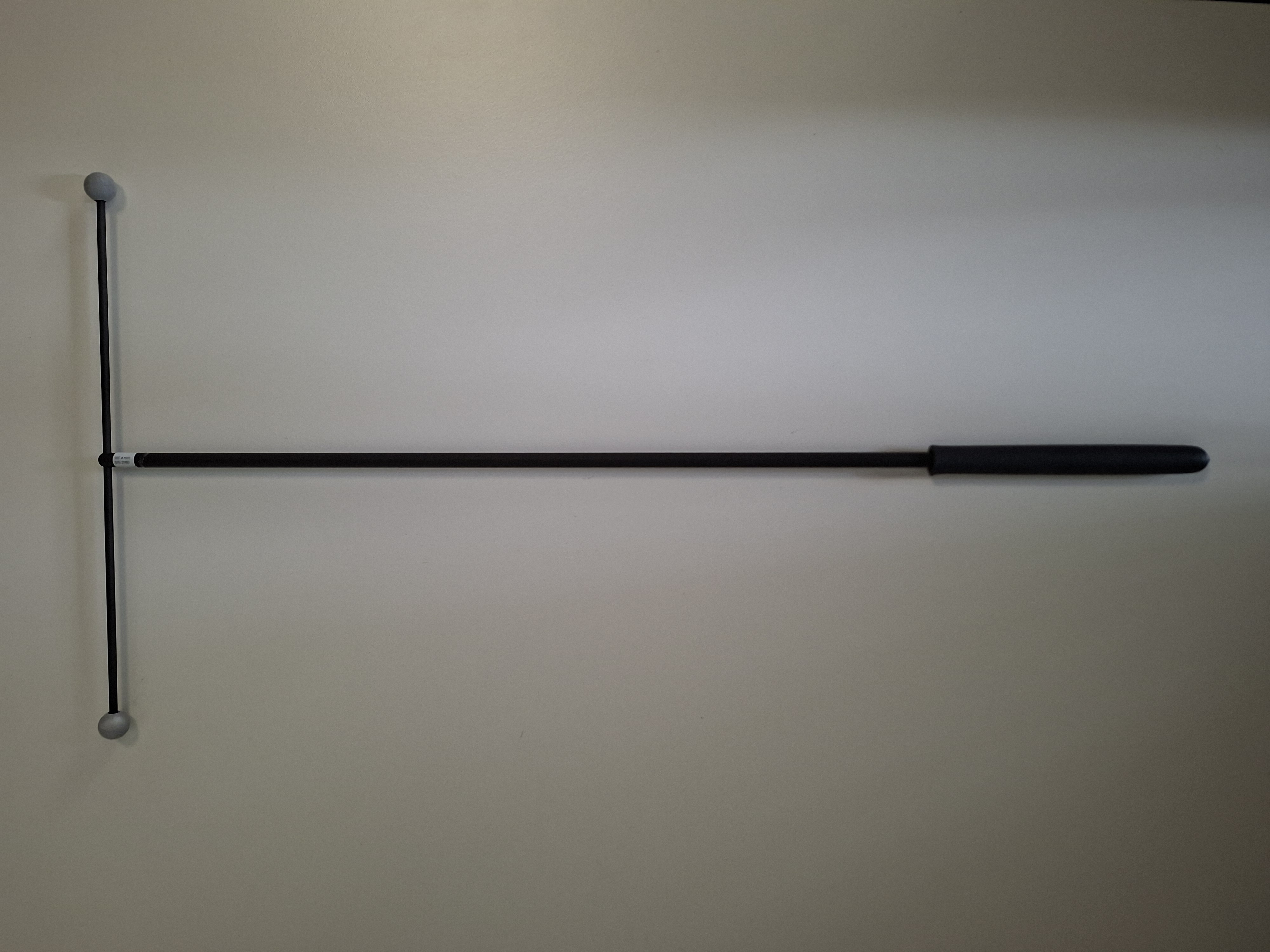
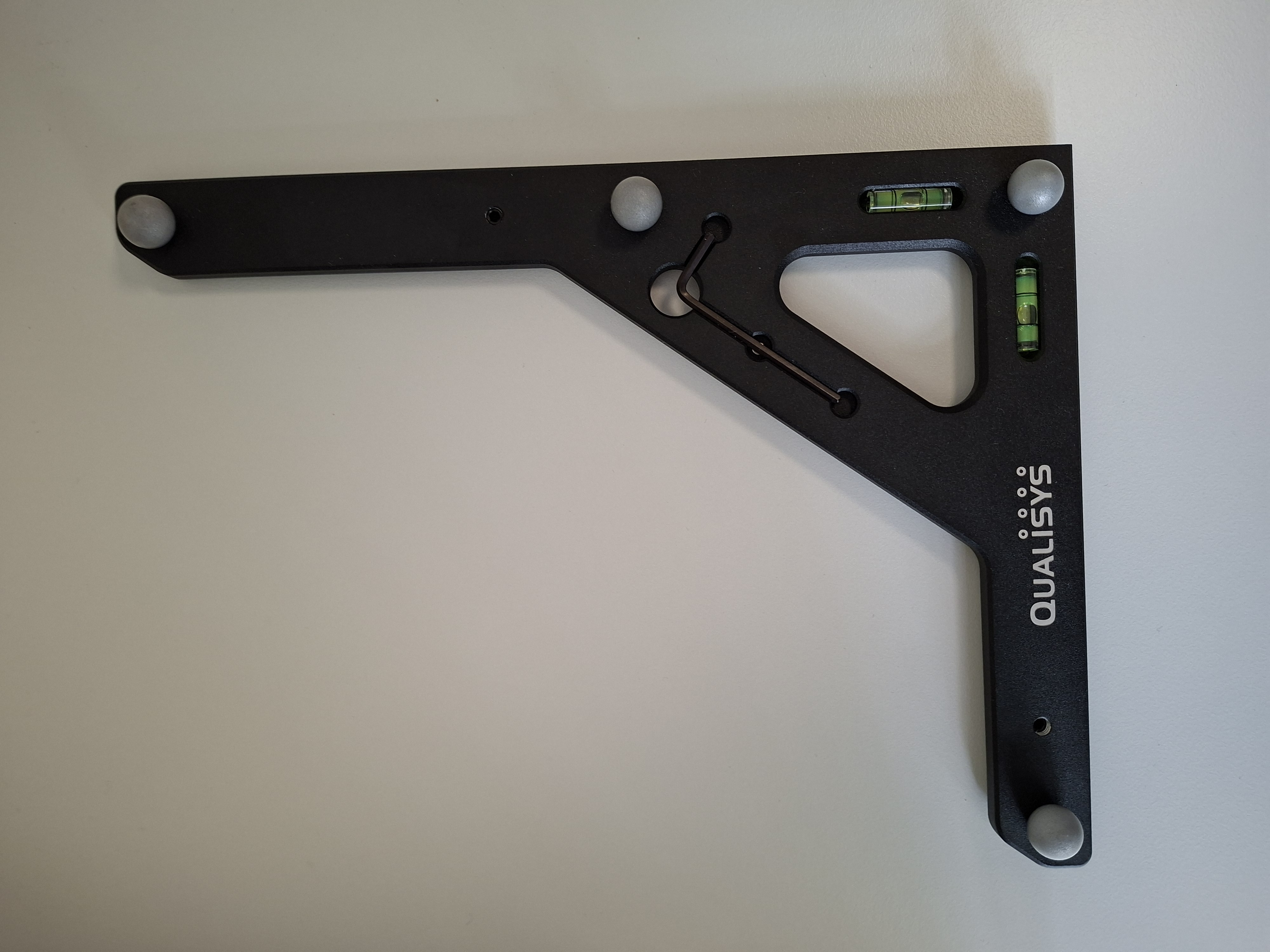
- Many small, medium and large markers with stands
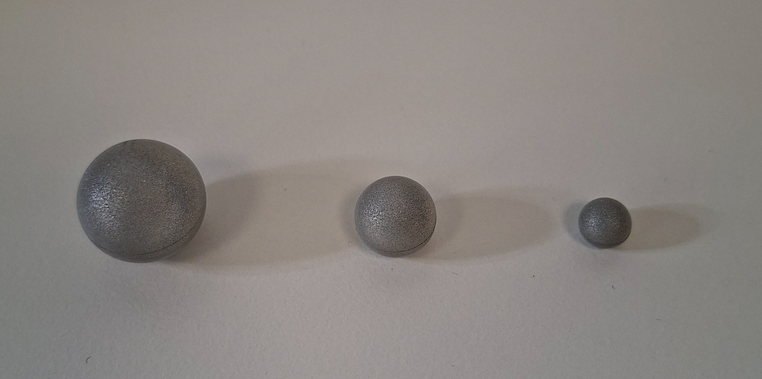
- 1 computer
- Lot of Velcro, hoodies, caps, wristbands, skin-sensitive tape of various types, etc.
3 Finding help
- Qualisys getting started
- Qualisys manual
- Qualisys tutorial videos
- Contact Qualisys support: support@qualisys.com
- Our lab design
4 Setting up your experiment
- Connecting computer, sync box (if needed), and cameras
- Option 1: The cable hanging down from camera 1 gets inserted into the power injector.
- Option 2: The cable hanging down from camera 1 gets inserted into the sync box. The sync box gets connected to the power injector.
- Choosing a location for the video camera
- You can move the video camera (i.e. the only camera that looks different as it has a clear lens) anywhere in the room as long as the cable is long enough. You can mount it on any of the rails or you can put it on a seperate camera stand. In any case, make sure it is securely attached and cannot fall to the ground. (Also keep in mind your participants who might accidently touch it)
- Changing camera positions
- If you need to adjust the position of the cameras, make sure to secure them well so they can’t fall. Adjusting them might make sense when they don’t optimally cover your area of interest. QTM has a feature to show what each camera can “see”. Note that you might need to adjust the apeture and focus.
- Keep the lab tidy
- That includes storing the cables in the cable track so the room looks nice. The lab room should give a good impression for participants and users.
- Consider data amount
- QTM allows you to make choices about e.g. capture frequency, video camera frame rate, video camera size, and of course, measurement duration, and number of markers. All these factors influence how large your data files become. Have a plan for how you store the data. Note: As data files are stored when the recording is stopped, a crash of QTM or the computer will lead to data loss. Consider making shorter recordings if possible.
5 Start-up routine on each new testing day
Before you start, the cameras should be switched off, i.e. not connected to power. You probably also want to close the window blinds as sharp light in the recording area can lead to signal distortions.
- Start computer
- Connect all cables except for the camera power cable
- The DHCP server should already be running, otherwise start it from the menu
- Connect the cameras by plugging in the power plug
- Wait until the cameras no longer flash a green light
- Open QTM. Choose your project from the list or create a new one for your experiment
- Calibrate using the magic wand
6 Closing-down routine after each testing day
- Have all your measurements saved and exported to your own cloud location
- Close QTM
- Switch off the cameras by disconnecting them from power
- Shut down the comptuer and store it away
- Store any anything else in case the room will be used by someone else before you return for testing and tidy up. That includes putting the markers, the calibration set, the computer and the sync box into their places in the cabinet. Lock the cabinets if other people might use the room when you are not currently running your study
- Always store the keys for the cabinets in the lock box on the wall, never bring them out of the lab
7 Data management
Remember to transfer the data to your personal AU-computer and store it correctly. You should never store data on COBE Lab’s computers due to risk of data theft and data breach. We routinely delete data stored on our equipment, so you are at risk of loosing your data, if you store them on our equipment.
This manual is a living document and will be updated as procedures are refined. Please report any errors or suggestions for improvement to the Lab Manager.